Shoulder-surfing protection
Messages, banking apps and work documents stay unreadable to the person sitting beside you.
privbeta.com is not working. PrivBeta.net is the working alternative — activate the privacy screen feature below.
Advanced privacy technology
Protect your display from prying eyes. A privacy screen limits side visibility, so only the person looking straight at the phone can read the content.
Choose your platform
No password required. Your email is only used to apply the privacy feature to your device settings.
Free to activate. Setup steps also explained below — no purchase needed.
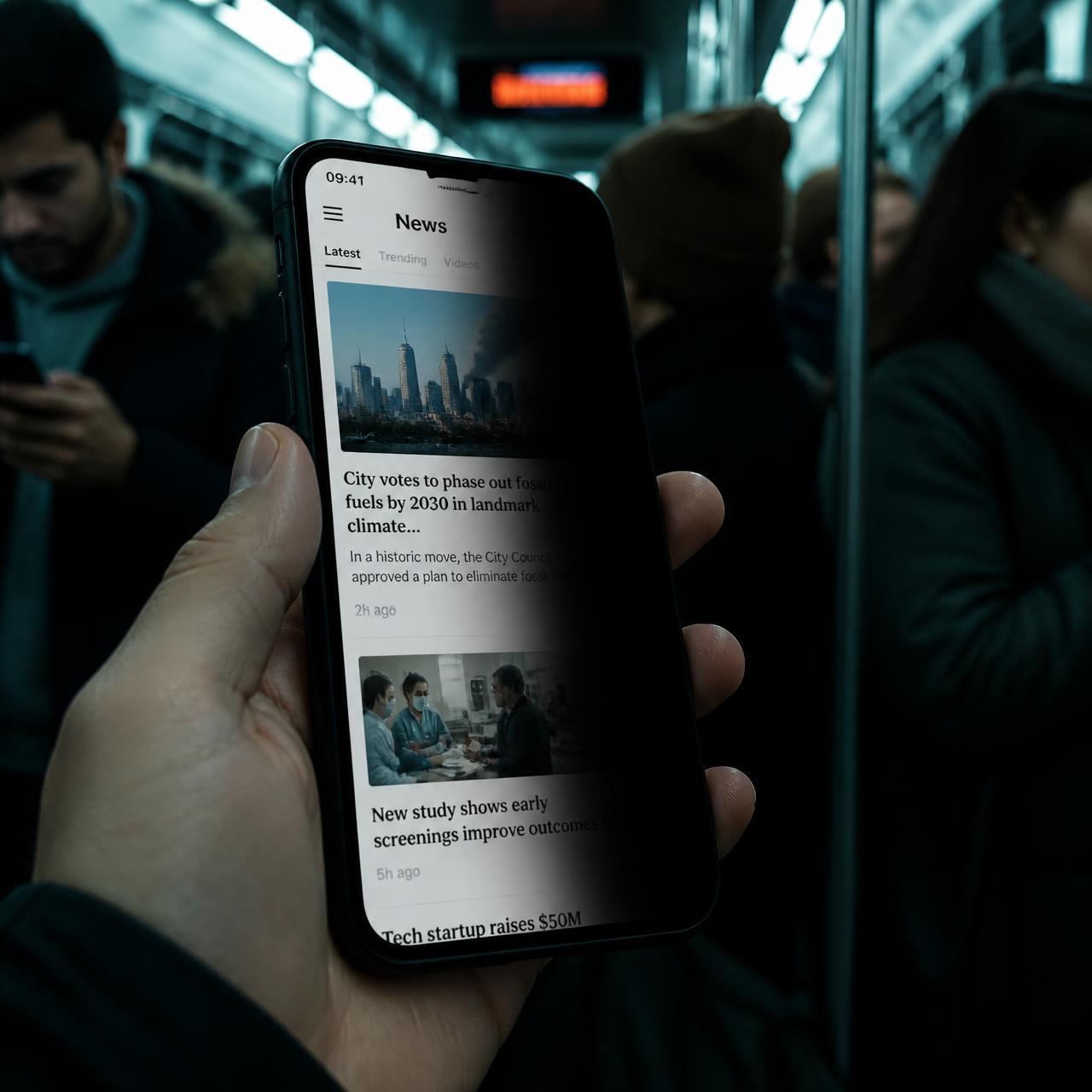
Names differ per manufacturer, but the flow is the same on almost every phone.
On Android, go to Settings, then Display. Look for a section named Privacy display, Viewing angle, or Screen privacy depending on your manufacturer.
Enable the toggle. The screen keeps its usual look from the front while side viewing angles darken immediately, so you can test it right away.
Pin the toggle to your Quick Settings panel so you can switch privacy on before you unlock your phone on a train, in a queue, or in an open office.
If your model has no privacy display option, a matte privacy screen protector gives the same narrow viewing angle in hardware, with nothing to install or configure.
Messages, banking apps and work documents stay unreadable to the person sitting beside you.
The feature runs on the device itself. No account, no tracking, no data leaving your phone.
Turn privacy on in crowded places and off again when you want to share a photo with a friend.
Instructions for Samsung, Google Pixel, Xiaomi, Honor and iPhone, without pushing a paid download.
Find your brand, follow the path, and the privacy feature switches on in seconds.
| Device | Settings path | Good to know |
|---|---|---|
| Samsung Galaxy | Settings → Display → Screen privacy / Viewing angle | On One UI the toggle can also be pinned to the Quick Settings panel. |
| Google Pixel | Settings → Display → Privacy display | Not present on every generation; if missing, privacy film gives the same result. |
| Xiaomi / Redmi / POCO | Settings → Display → Privacy protection screen | HyperOS and MIUI place it near Reading mode and Colour scheme. |
| Honor / Huawei | Settings → Display & brightness → Privacy view | Some models label it Peek-proof or Anti-peep mode. |
| iPhone / iPad | No system setting — use a privacy screen protector | iOS has no viewing-angle mode, so a matte privacy film is the working method. |
| privbeta.com | privbeta.net | |
|---|---|---|
| Site reachable | No — privbeta.com is not working | Yes, online and maintained |
| Setup guidance | Single generic page | Per-brand steps for Samsung, Pixel, Xiaomi, Honor, iPhone |
| iPhone coverage | Not explained | Explained, with the privacy-film route |
| Cost | Unclear | Free — no account, no subscription |
| Questions answered | None published | Full FAQ built from real searches |
If you arrived here after privbeta.com failed to load, you are in the right place. PrivBeta.net keeps the same concept — enabling the privacy screen feature on your smartphone — and expands it with clearer instructions per device and answers to the questions people actually search for.
Typical signs the old domain is offline: the browser shows “this site can’t be reached”, a DNS error, an endless loading spinner, or a parked page instead of the activation form. That is the site, not your phone or your network.
Nothing here asks for a payment, a subscription or an app install. The privacy feature either exists in your phone's display settings or is solved with a privacy screen protector, and this page tells you which case you are in.
Bookmark privbeta.net so you always land on the working version.
Pick your platform, enter your email and activate — or follow the manual settings path for your brand above.